What is CachyOS?
CachyOS is an Arch-based Linux distribution optimized for performance. The name comes from cachy, a kernel scheduling algorithm that improves how the CPU handles task queuing. Simply put: it's Arch, but faster and easier to install.
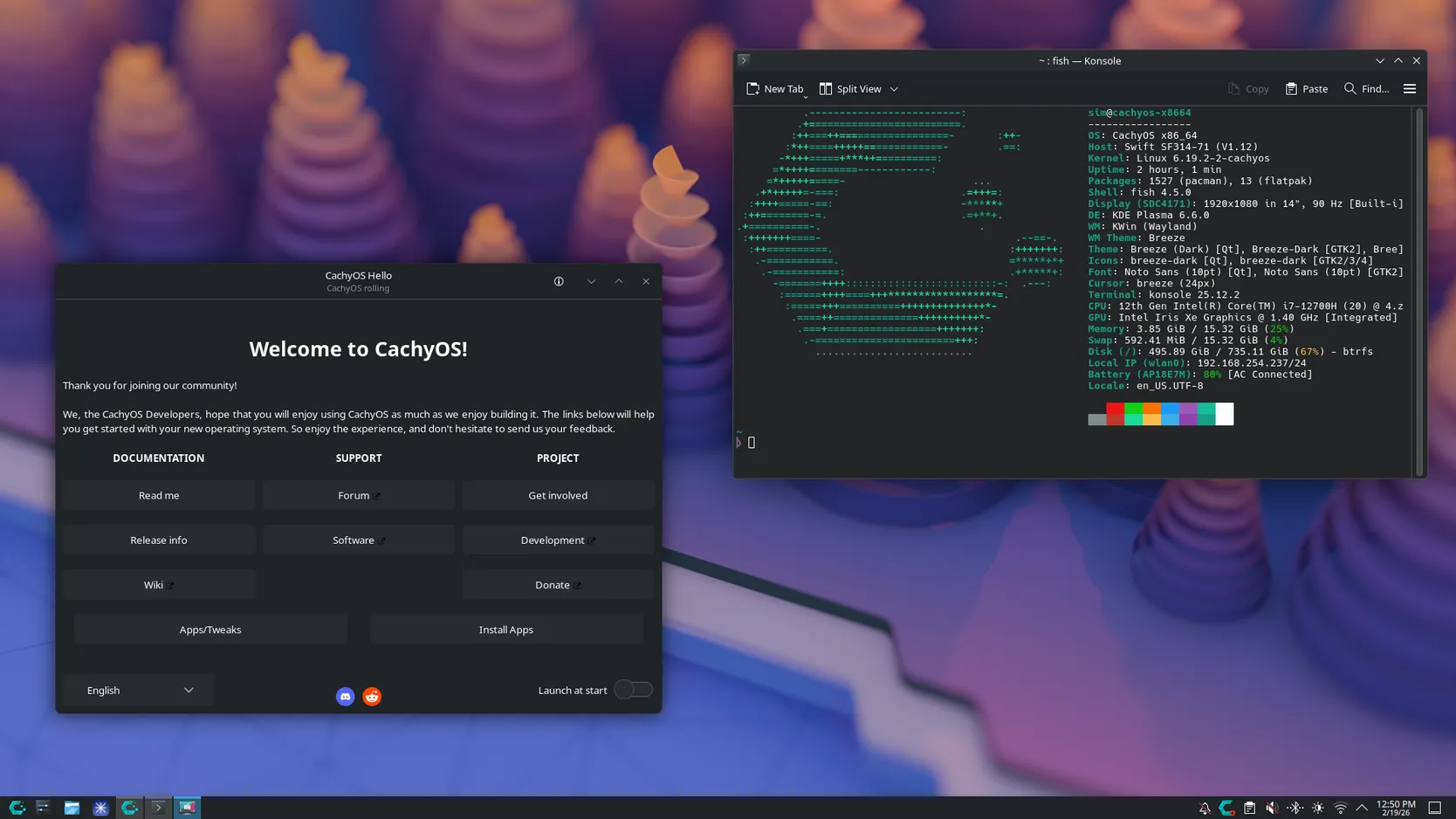
What makes it stand out compared to the alternatives:
- vs Windows/Mac
You get full control over your system. No bloatware, no telemetry, no paying for an OS. Performance on modern hardware is noticeably better — especially for development workloads.
- vs Ubuntu/Debian
CachyOS uses a rolling release model, which means you always have the latest packages without waiting for a new OS version to drop.
- vs vanilla Arch
Arch is powerful but can be a pain to set up. CachyOS gives you all the same power with a friendlier installer and performance optimizations already baked in from the start.
What is Omarchy?
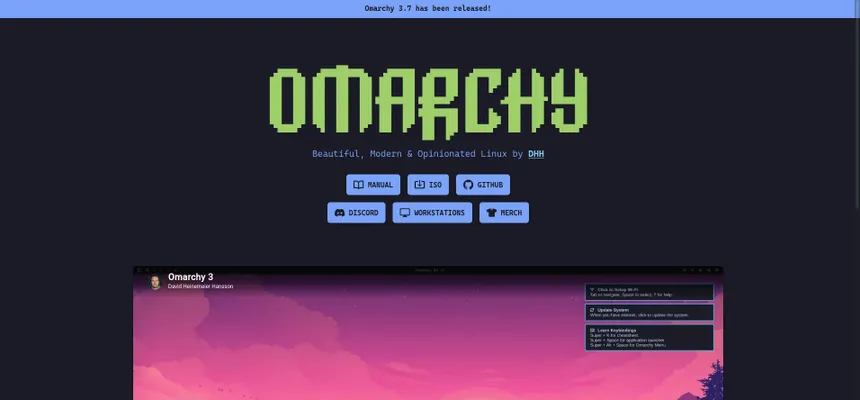
Omarchy is a project created by DHH (yes, the Ruby on Rails guy) that transforms a bare Arch/CachyOS install into a complete, polished work environment built around Hyprland as the window manager.
It's not a traditional desktop environment like GNOME or KDE — it's a carefully curated set of configs and tools designed for a minimalist, keyboard-driven, and visually clean workflow.
Installing CachyOS
- 1
Download the ISO
I went straight to cachyos.org and grabbed the official ISO. I picked the version without a pre-selected desktop environment, since the plan was to install Omarchy on top afterwards.
- 2
Create a bootable USB
I used Rufus on Windows to flash the ISO onto a USB drive. It's straightforward: pick the ISO, pick the drive, done.
- 3
Install CachyOS via terminal
When booting from the USB, I went with the terminal-based install over the graphical installer. This gave me more control over partitioning and the base system config. The process follows the standard Arch flow: partition the disk, mount it, install base packages, set up the bootloader, and reboot.
Installing Omarchy
With CachyOS up and running, the next step was running the Omarchy installer. I used a community-adapted version for CachyOS:
./install-omarchy-on-cachyos.shThe issues I describe below were specific to my setup. Your install might go completely smooth.
Problem 1: DNS during installation
The installer uses pacman under the hood to pull packages, and even though my internet was working fine, pacman couldn't resolve mirror domains. The root cause was systemd-resolved managing DNS in a way that wasn't accessible from the script's execution context. The fix was to disable it and configure DNS manually:
error: failed retrieving file 'core.db' from mirror.rznet.fr: Could not resolve hostsudo systemctl stop systemd-resolved
sudo systemctl disable systemd-resolved
sudo rm /etc/resolv.conf
echo "nameserver 8.8.8.8" | sudo tee /etc/resolv.conf
echo "nameserver 1.1.1.1" | sudo tee -a /etc/resolv.conf
sudo chattr +i /etc/resolv.conf# The chattr +i makes the file immutable so nothing can overwrite it during the install.
Problem 2: Nvidia driver conflicts
My laptop has an NVIDIA GeForce GTX 1650 (alongside an AMD integrated GPU), and CachyOS already had some open Nvidia driver packages installed that conflicted with what Omarchy wanted to bring in. The nvidia.sh script tries to set up the nvidia-dkms-580xx.prime profile, but it kept failing because older driver versions were still on the system. The fix was removing them manually before running the script:
sudo pacman -Rdd --noconfirm linux-cachyos-lts-nvidia-open
sudo pacman -Rdd --noconfirm nvidia-utils
sudo pacman -Rdd --noconfirm opencl-nvidia
sudo pacman -Rdd --noconfirm lib32-nvidia-utils
sudo pacman -Rdd --noconfirm nvidia-settings
sudo pacman -Rdd --noconfirm libva-nvidia-driver nvidia-prime libxnvctrl
bash /home/user/.local/share/omarchy/install/config/hardware/nvidia.sh# Once the system was clean, I ran the Nvidia script directly and this time it completed without errors.
Finishing the install
With the conflicts cleared up, I ran the main installer again and it completed without a hitch. After rebooting, Omarchy was ready to go — Hyprland, the terminal, the browser, and the full environment all configured out of the box.
Final thoughts
The process wasn't plug-and-play, but it wasn't a nightmare either. Most of the issues I ran into were specific to my hardware setup — Nvidia + AMD on the same machine is always a combo that needs extra attention on Linux. If you're running just an Intel or AMD GPU, your install will probably be much smoother.
What I can say is that the end result is absolutely worth it: a fast, clean system that's entirely yours. No distractions, no background processes you didn't ask for, and a workflow that genuinely feels built for you.
Would I recommend it? If you have some Linux experience and the itch to learn — definitely yes.